-
Shop
- Advanced Technologies
- AI Career Advantage Collection
- AI Skills Mastery 2026 Collection
- Bathroom
- Best-Sellers
- Car Accessories
- Dating & Social Skills
- Digital Resources
- AI Skills
- Beauty
- Car Buying & Ownership
- Cozy Feast Collection
- Electronics & Technology
- Emotional Intelligence
- Financial Education
- Home Styling & Organization
- Mindset
- Online Business
- Parenting & Child Development
- Personal Style & Fashion
- Pet Lifestyle & Wellness
- Positive Thinking
- Self Confidence
- Sleep Improvement
- Smart Life with AI
- Stress Management & Relaxation
- Wellness
- Yoga & Fitness
- Yoga & Mind-Body Practices
- Education & Learning
- Family & Parenting
- Fashion
- Furniture
- Gadgets
- Health & Beauty
- Health & Wellness
- Home & Garden
- Home Electronics
- Jewelry
- Kids & Babies
- Kitchen
- Lighting
- Online Business for Beginners
- Patio, Lawn & Garden
- Personal Growth
- Pet Care
- Pet Supplies
- Pets
- Shoes
- Smart Home Living Guides
- Sport & Outdoors
- Stress Relief & Relaxation
- TikTok Growth & Monetization Mastery
- Travel
- Travel Planning
- Wealth
- Wealth Building
- Budgeting & Saving
- Cryptocurrency Investing
- Debt Management
- Entrepreneurship & Business Growth
- Family Finance & Budgeting
- Financial Independence
- Financial Mindset & Psychology
- Financial Planning
- Frugal Living & Expense Hacks
- Goal Setting
- High-Income Skills
- Investing Basics
- Leadership
- Motivation
- Networking & Mentorship
- Passive Income Strategies
- Real Estate Investing
- Side Hustles
- Stock Market Investing
- Popular
- Best deals
How to Turn On Zoom on Your Phone: Camera and Screen
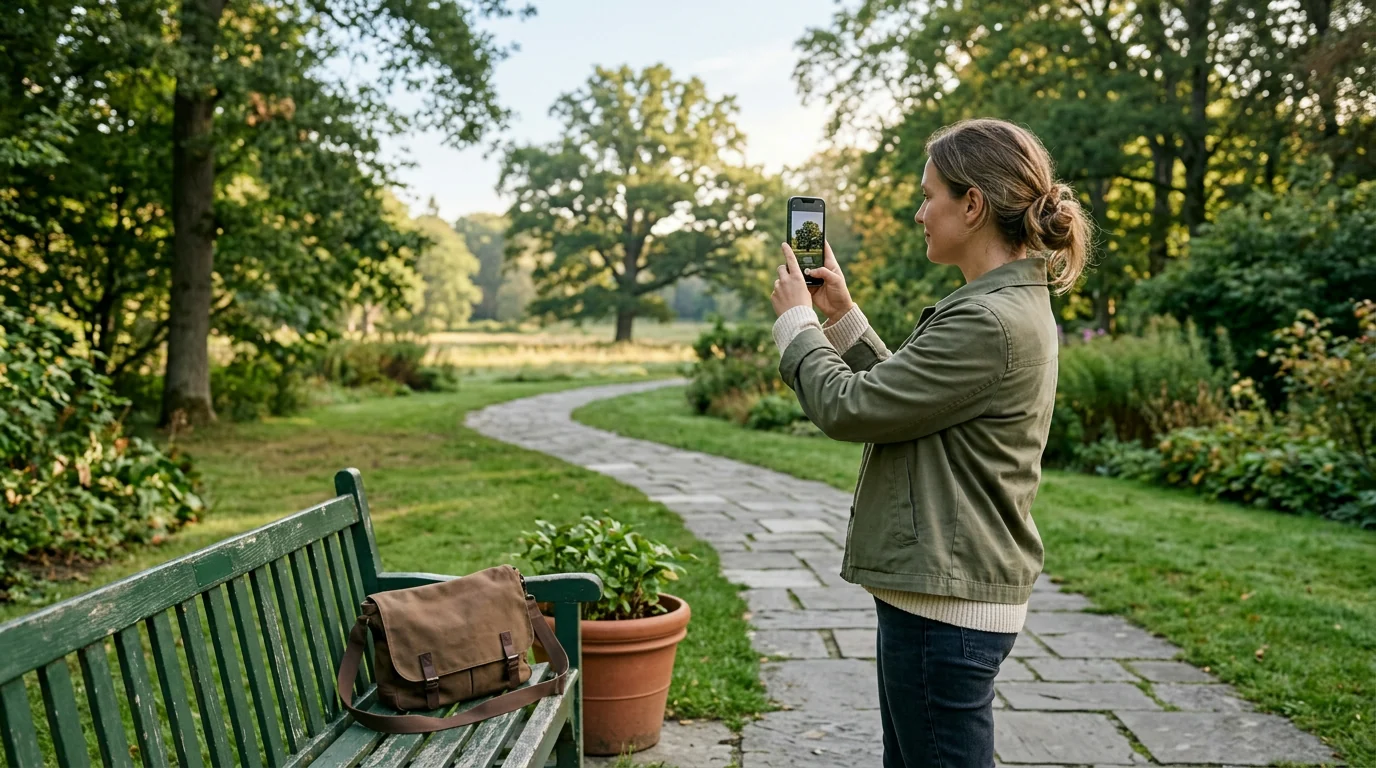
20% off on product page · save $2.25
How to Turn On Zoom on Your Phone: Camera and Screen
Turn on camera zoom
Open your phone’s Camera app, choose Photo or Video mode, and point the camera at the subject you want to capture. Place two fingers on the preview and spread them apart to zoom in; pinch them together to zoom back out.
Many phones also show zoom controls such as 0.5×, 1×, or 2× near the viewfinder, which you can tap to switch between available views. If a slider appears when you touch a zoom control, move it until the framing looks right, then tap the shutter button or start recording.

Find the best framing
If you don’t see a zoom control, tap the viewfinder or look near the shutter button, since the layout can vary by phone, camera mode, and app. Some modes offer fewer zoom choices than others, so switch back to the standard Photo mode if the control isn’t available where you’re looking.
For a clearer photo, try moving closer when you can rather than relying on a large amount of zoom, and hold your phone steady as you take the picture. Our guide, Understanding Phone Zoom Quality: A Complete Guide to Phone Camera Zoom Quality Explained, offers more context for choosing how to frame your shot.
Check the product’s listed specifications when evaluating find the best framing.
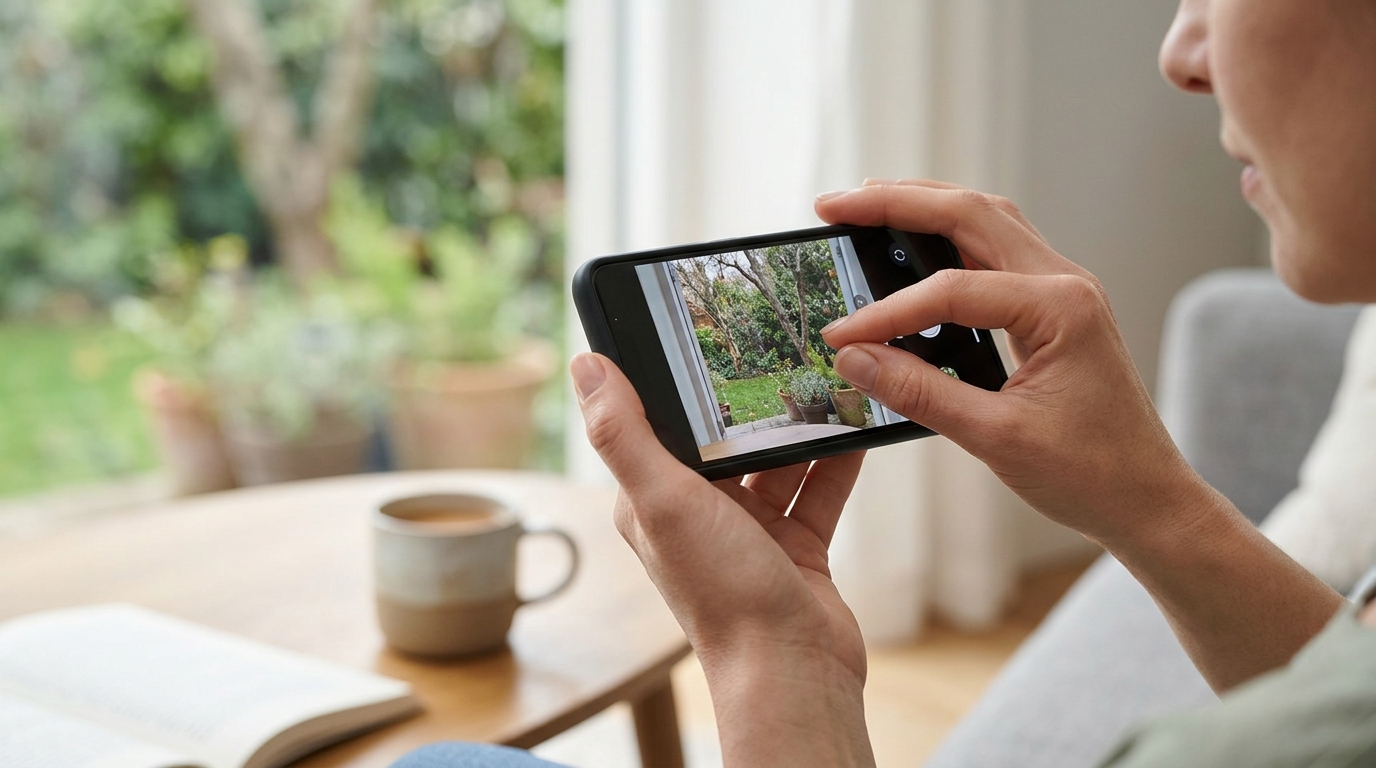
Featured in this guide
Understanding Phone Zoom Quality: A Complete Guide to Phone Camera Zoom Quality Explained
Understand camera zoom options
A phone may use different cameras or crop the image as you zoom, so the appearance of your photo can change depending on the zoom level and lighting. Try a few available settings and compare the results, especially when photographing distant subjects or working in a dim room.
Zooming in can make hand movement more noticeable, so brace your hands or rest the phone on a stable surface when practical. Our team recommends taking a moment to review the photo on your screen before moving on, particularly if you can’t easily retake it.
Zoom in on your screen instead
If you want to make text and other screen content larger rather than zoom the camera, look for a magnification or zoom feature under Accessibility in your phone’s Settings app. The feature’s name and activation gesture depend on your phone, so follow the instructions shown on that settings screen.
You can also enlarge content in many apps by spreading two fingers apart on the screen, although that gesture won’t work everywhere. To return to the usual view, pinch inward or use the accessibility shortcut described in your phone’s settings.
FAQ
Where is the Zoom setting on my Phone?
Camera zoom controls are usually on the camera preview, often near the shutter button. Screen magnification is generally found in the Accessibility section of your phone’s Settings app.
See if Understanding Phone Zoom Quality: A Complete Guide to Phone Camera Zoom Quality Explained fits your setup
How to Tell if a Bowl Is Porcelain or Ceramic
Oct 30, 2026
What If You Leave Health Insurance Off Your Taxes?
Oct 31, 2026













Leave a comment